
How to make music bingo cards: a step-by-step guide
Music bingo works like the bingo you already know, but the squares have song titles instead of numbers. The host plays songs one after another and players mark the ones they hear. The first person to complete a line shouts “Bingo!” and wins.
This guide explains how to prepare a game with My Music Bingo from start to finish. You don't need an account or any technical knowledge. If you have your songs ready, the cards take about ten minutes.
What you need
- A list of songs. At least 25. Between 30 and 60 is ideal.
- A way to play the music. A phone or computer with Spotify or YouTube and a speaker, or live musicians.
- A printer, or players with a phone. You can print the cards or send them as a link.
1Add your songs
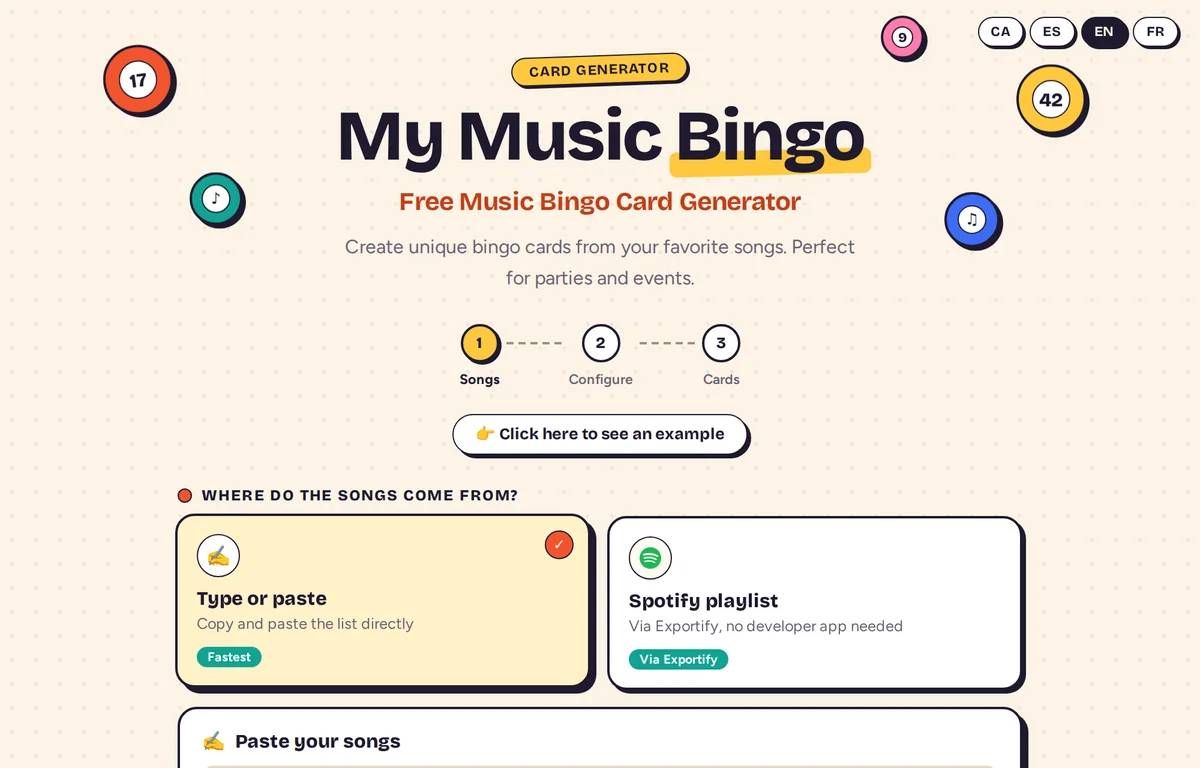
Open mymusicbingo.eu. Under Where do the songs come from? you can choose between two options.
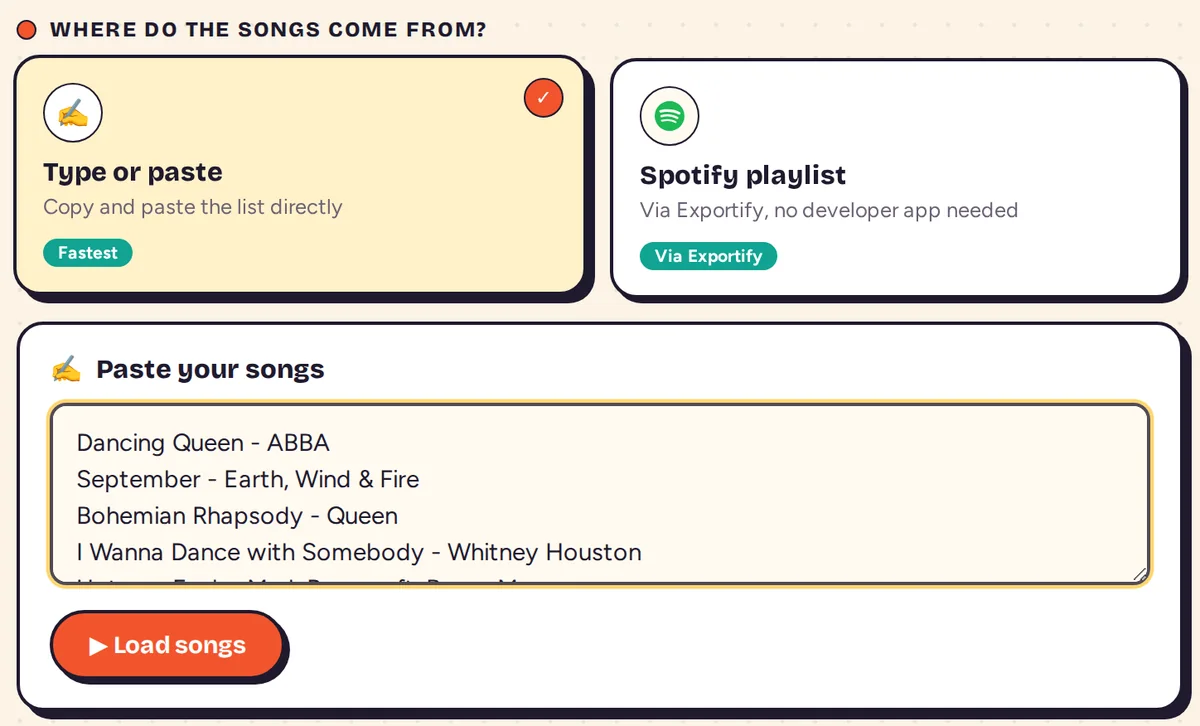
Option A: type or paste a list
This is the quickest way. Write one song per line in the text box. If you want to include the artist, put a space, a hyphen and another space between the title and the artist:
Dancing Queen - ABBA
You can also write just the title. When the list is ready, press ▶ Load songs.
Option B: import a Spotify playlist
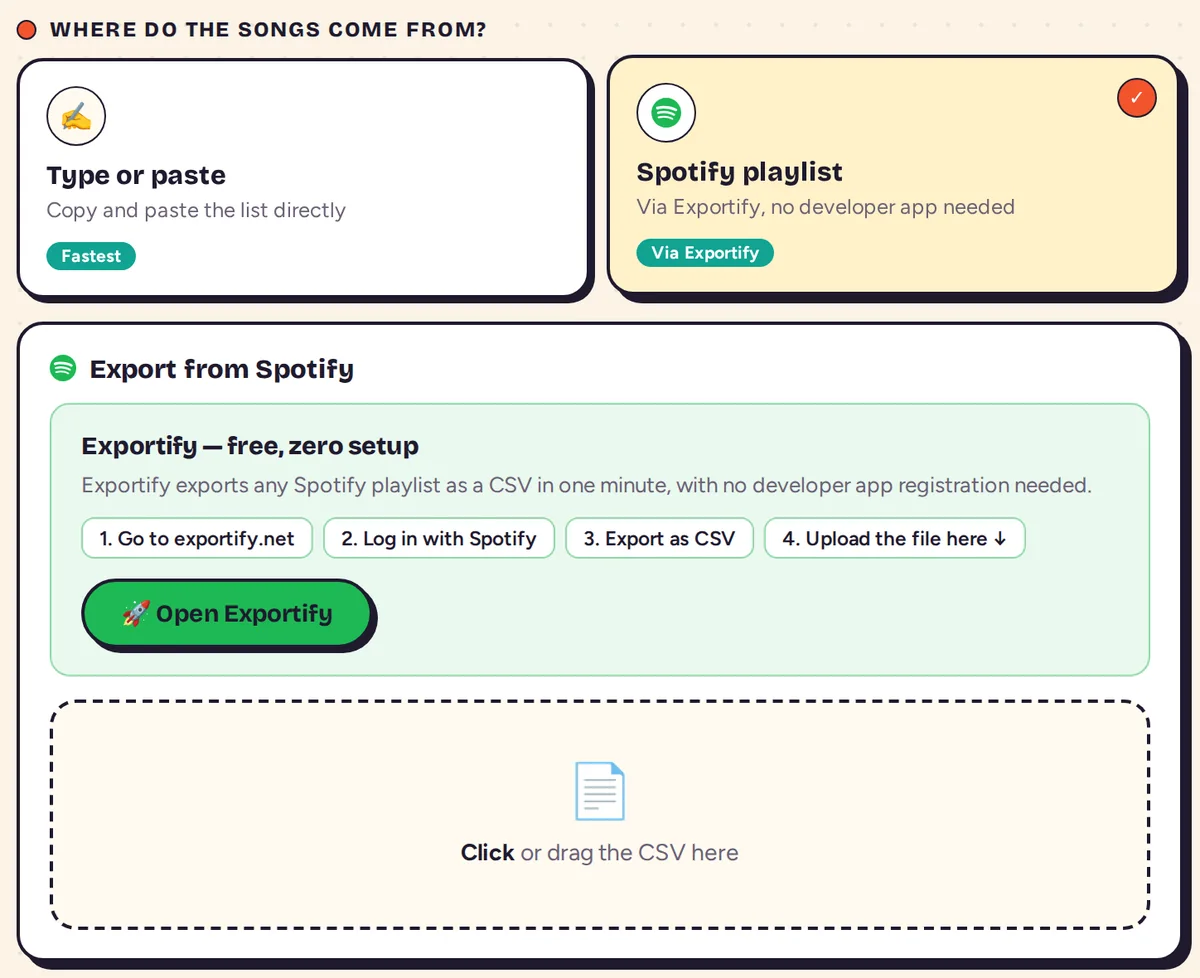
If your songs are already in a Spotify playlist, you can bring them in with Exportify, a free website that saves a playlist as a file.
- Choose Spotify playlist and press 🚀 Open Exportify.
- Log in with your Spotify account and accept the access request.
- Find your playlist and press Export. A file ending in
.csvis saved to your computer. - Go back to My Music Bingo and drag the file onto the dotted box, or click the box and choose the file.
2Check the song list
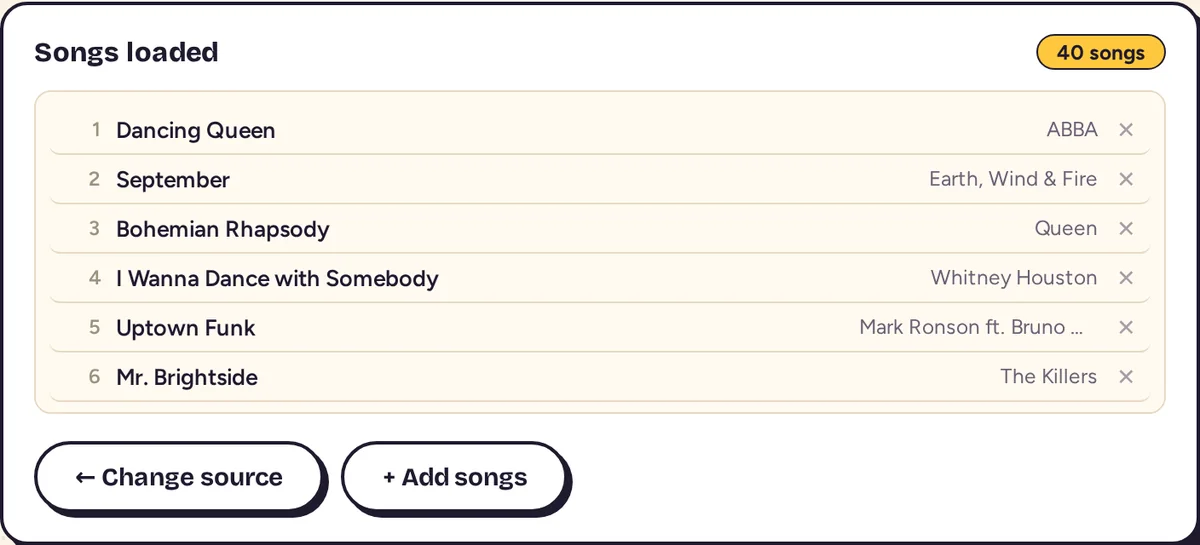
Once the songs are loaded, you will see the full list with a counter in the top right corner. Take a moment to review it:
- Press ✕ next to a song to remove it.
- Press + Add songs to add more without starting again.
- Press ← Change source if you want to go back and use a different list.
3Set up the cards
Below the list you will find the card settings. Here is what each one does:
| No. of cards | How many different cards to create. Make one per player or team, plus a few extra in case more people join. |
|---|---|
| Rows / Columns | The size of the grid. A 3×3 card makes a short game and suits young children. A 4×4 card is a good middle ground. A 5×5 card makes a longer game. |
| Game name / Subtitle | Printed at the top of every card. For example, the name of the party and the date. |
| Free space at center | Adds a free square that counts as already marked. It makes the game a little faster. |
| Show artist | Prints the artist under each title. It helps players who remember the singer better than the song name. |
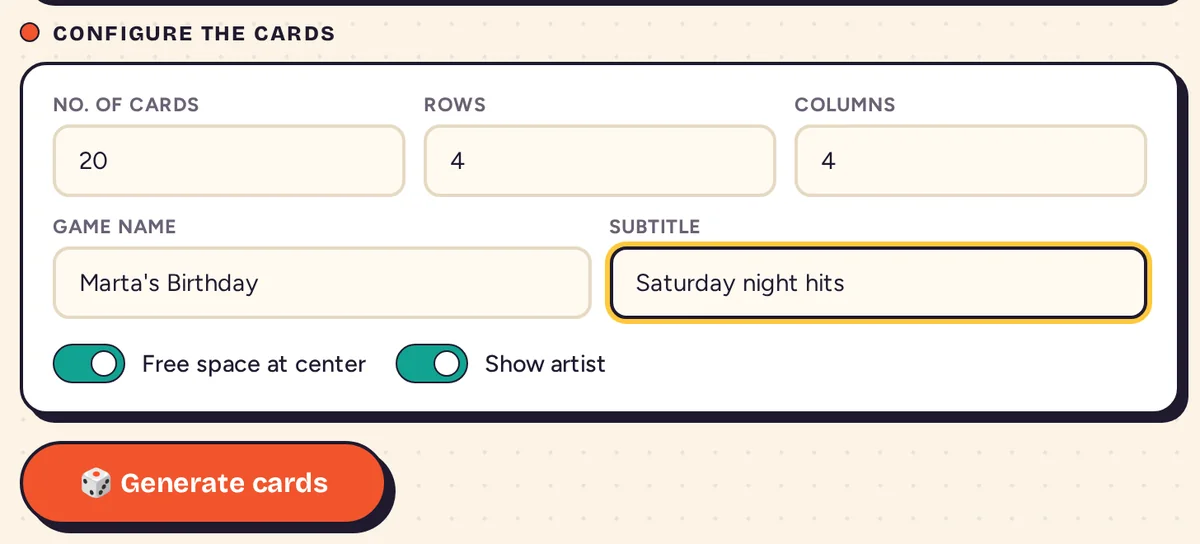
Each card needs one different song per square. A 4×4 card with a free space needs 15 songs, and a 5×5 card with a free space needs 24. If your list is too short for the grid you chose, a warning appears. Make the grid smaller or add more songs.

4Generate the cards
Press 🎲 Generate cards. A preview appears with the first six cards. The rest are not shown, but they will all be printed.
If you want a different mix, press 🔀 Regenerate and the songs are shuffled again.
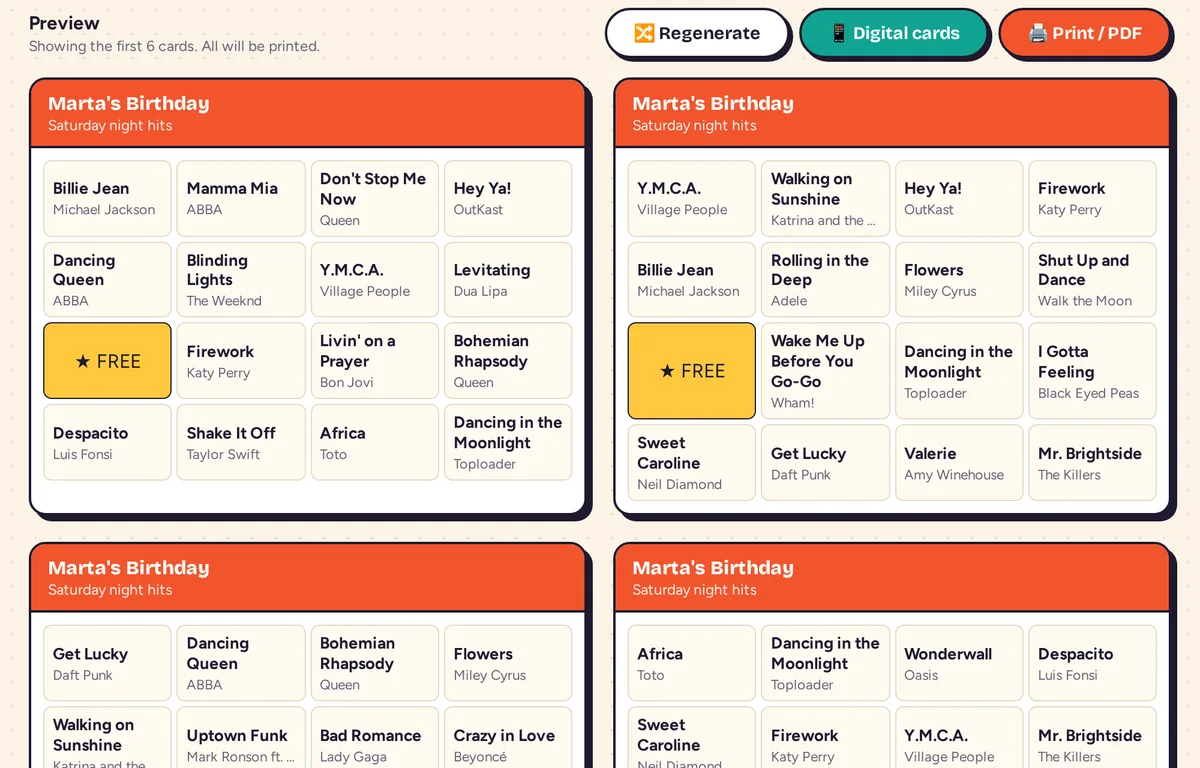
Now choose how the players will get their cards: on paper or on their phones. You can also do both.
5Print the cards
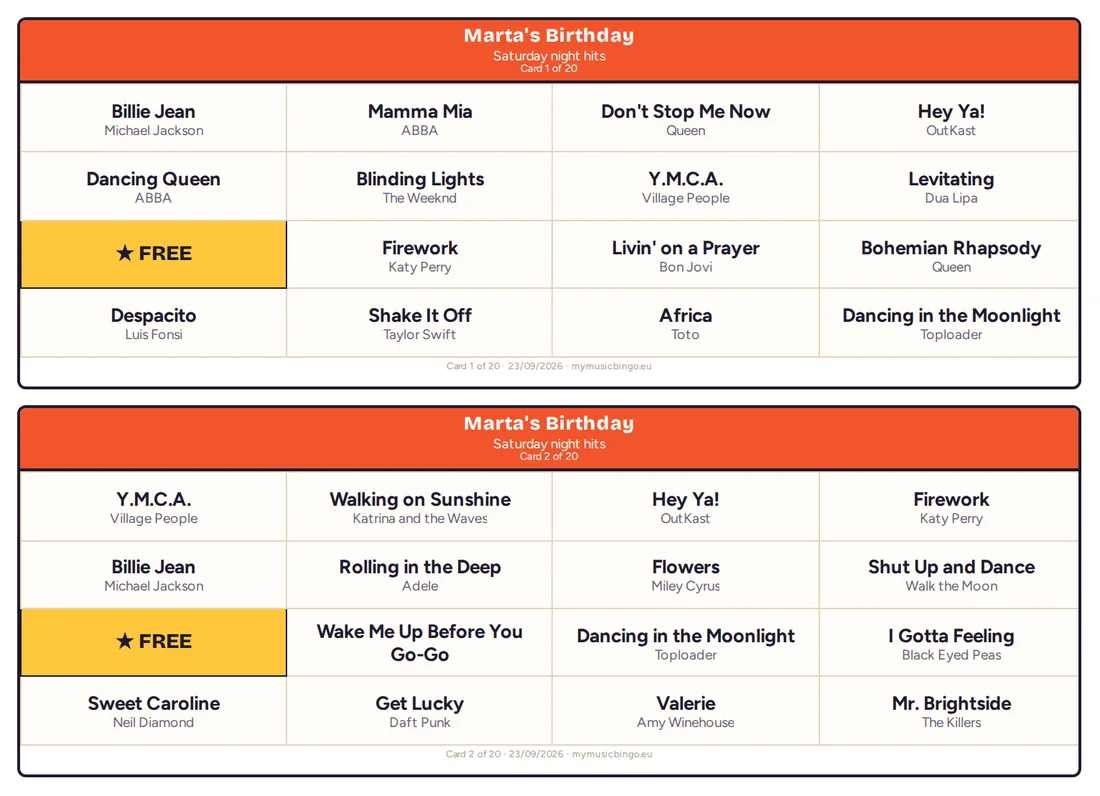
Press 🖨️ Print / PDF. Your browser opens its print window.
- To print now, choose your printer and press print.
- To keep a file, choose Save as PDF as the destination. You can print it later or send it by email.
The cards are laid out for A4 paper. Each card has its number at the bottom, so it is easy to check that none are missing.
Or send the cards to phones
If you prefer not to print, press 📱 Digital cards. A window opens with a link. Press 📋 Copy link and paste it into a WhatsApp group, an email or any chat app.
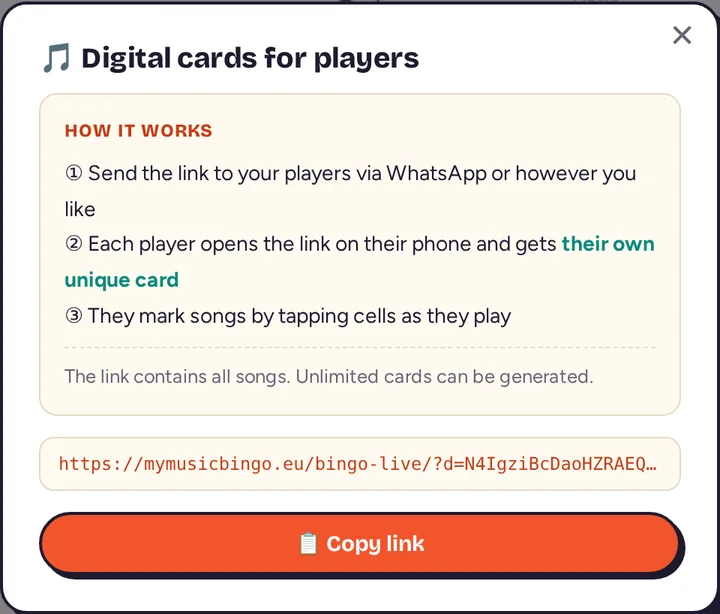
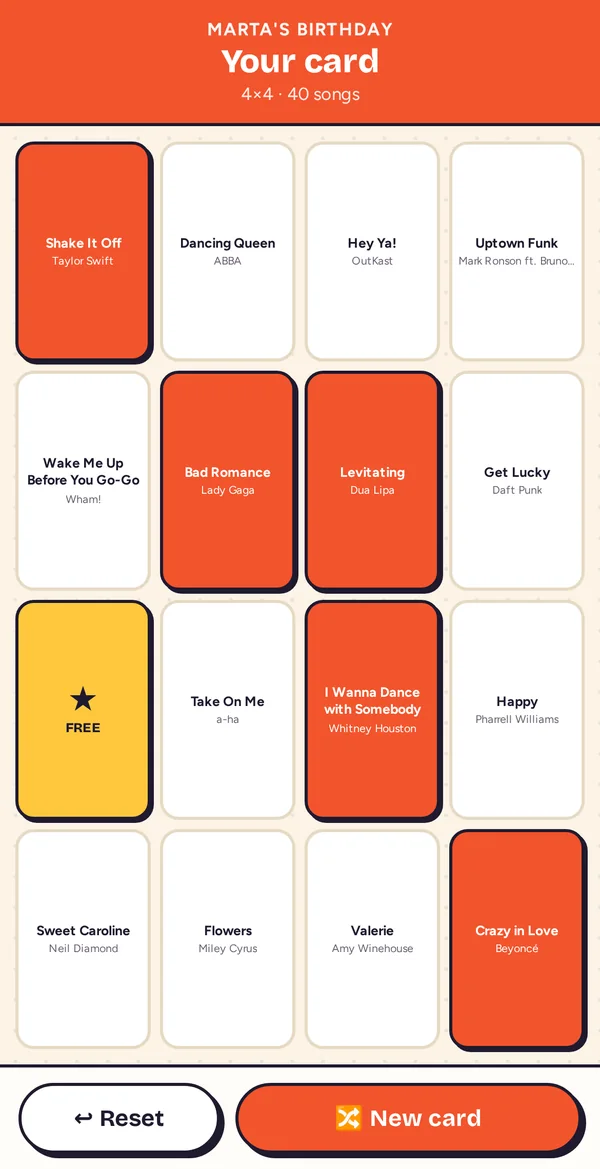
Each person who opens the link gets their own card, created at that moment. On the card:
- Tap a square to mark a song. Tap it again to unmark it.
- ↩ Reset clears all the marks.
- 🔀 New card gives the player a different card.
Once the page has loaded, the card keeps working without an internet connection. That is useful in places with poor coverage.
6Run the game
With the cards ready, this is how a round works:
- Agree on the winning pattern before you start. One line, two lines or the full card. A line can be a row or a column, and on square cards a diagonal counts too.
- Play the songs in random order. Use the shuffle option in Spotify or YouTube on the same playlist you used for the cards.
- Play 20 to 40 seconds of each song. That is usually enough for people to recognise it and keeps the game moving.
- Keep a note of the songs that have played. A sheet of paper works fine, or the listening history in your music app.
- When someone shouts “Bingo!”, check their card. Compare the marked songs with your list. If they all match, that player wins. If not, the game carries on.
Ideas for different groups
The same tool works for very different audiences. These settings are a good starting point:
👧 Children
3×3 cards, songs from films and cartoons, and one line to win. Children who can't read yet can play in pairs with an adult.
🏫 Classrooms
Good for listening practice in a language class or to review the songs from a music unit. A 4×4 card fits well into one lesson.
👵 Older adults
Songs from the decades they grew up with, 3×3 or 4×4 cards and Show artist turned on. Printed cards are usually easier than phones.
🎉 Parties and weddings
Songs linked to the people you are celebrating, their names as the game name, and cards on phones so nobody has to print.
🏢 Work events
Play in teams with one card per team. Mix songs from several decades so every age group has a chance.
🎸 Bars and live music
A 5×5 card and a longer playlist make the game last the whole evening. Give a small prize for each round.
Common problems
The Spotify file doesn't load
Upload the .csv file exactly as Exportify saved it. If you opened it in Excel and saved it again, export it once more from Exportify. If it still doesn't work, open the file, copy the song titles and paste them into the text box.
A message says I need more songs
Your grid has more squares than you have songs. Reduce the number of rows or columns, or add songs with + Add songs.
The same song appears on many cards
That is normal. Each card is a random selection from your list, so popular songs will turn up on several cards. What changes is the combination.
Some players can't open the link
With long song lists the link is also long, and some apps cut it. Use 📋 Copy link and paste it as it is, without editing it.
Are my songs stored anywhere?
No. The cards are created in your own browser and the song list is not sent to any server. For digital cards, the list travels inside the link itself.
Ready to play?
Make your music bingo cards now. It's free and you don't need to sign up.
Create music bingo cards